
How to Keep Your Email When Switching Internet Providers: 7 Easy Steps
February 10, 2026
How to Keep Your Email When Switching Internet Providers: 7 Easy Steps
One of the most common concerns we hear from new Lakeshore Fiber customers is this:
“If I switch internet providers, will I lose my email address?”
If your current email ends in something like @charter.net, @sbcglobal.net, or @wowway.com, there’s a good chance you may lose access when you cancel service. Many provider‑based email accounts are tied directly to your internet subscription.
But here’s the good news:
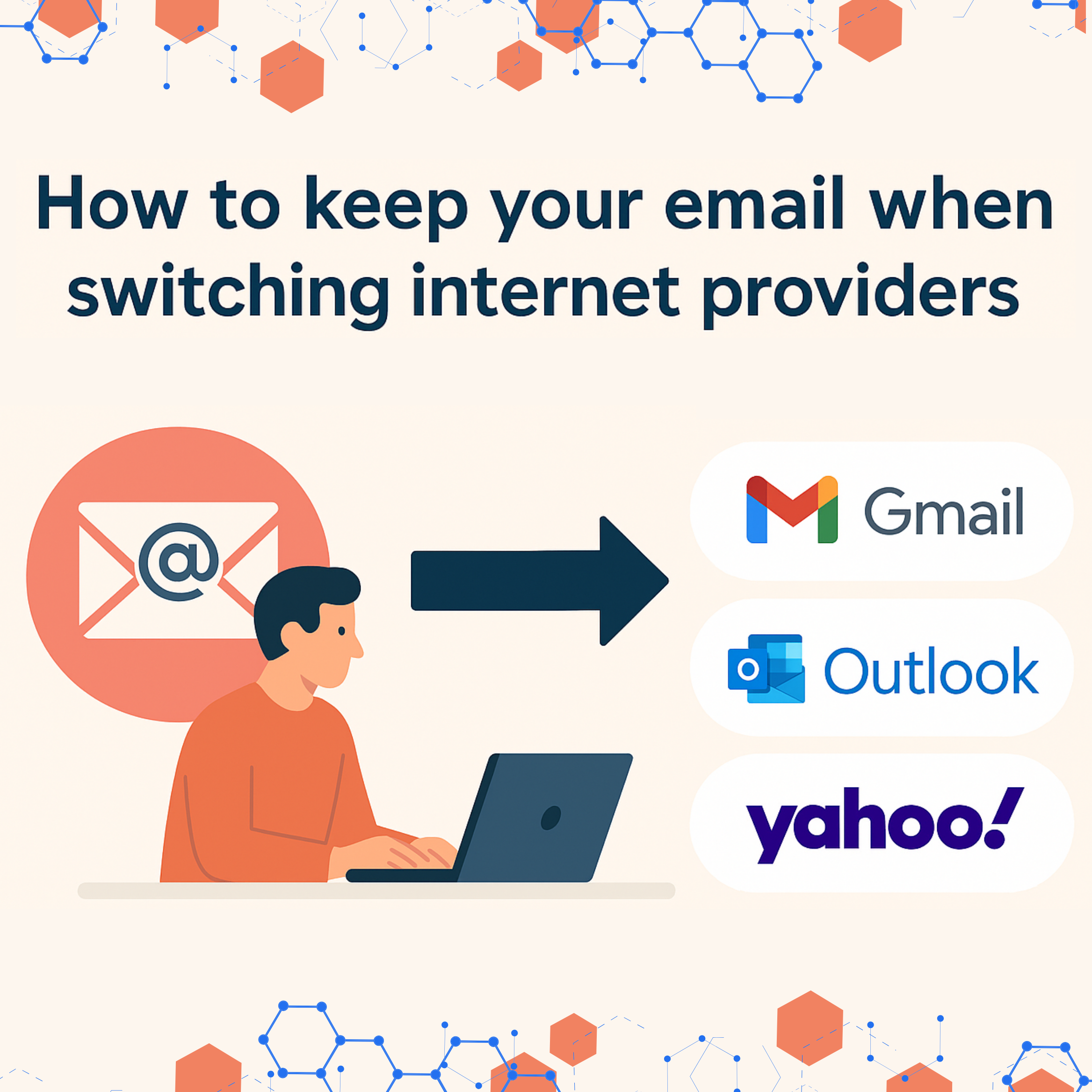
👉 You don’t have to lose your email when you switch providers. By moving it to sites like Gmail, Outlook, or Yahoo, you’ll have an email address that’s yours to keep for good.
This gives you a permanent email address that stays with you for life.
As your local fiber internet team here in Alpena, we want your switch to be smooth and stress‑free. This guide walks you through simple steps to secure your emails, contacts, and logins before moving to a new provider.
To learn more about how fiber works in Alpena, check out Lakeshorefiber.com.
Why It’s Important to Keep Your Email When Switching Internet Providers
✔ Keep your email for life
✔ Better security
✔ Easy access on any device
✔ No disruption to your accounts
Option 1: Moving to Gmail (Google)
Step 1: Create a Gmail Account
Click Create account → For myself.
Step 2: Import Your Old Emails and Contacts
- Open Gmail
- Click the gear icon → See all settings
- Choose Accounts and Import
- Under “Import mail and contacts,” click Import from another address
- Enter your old email login
- Choose what to import (emails, contacts, or both)
Step 3: Enable Auto‑Forwarding (Optional)
Option 2: Moving to Microsoft Outlook (Outlook.com)
Step 1: Create a Free Outlook Account
Click Create free account.
Step 2: Import Your Emails and Contacts
- Click Settings (gear icon)
- Choose Mail
- Select Sync email
- Under “Connected accounts,” add your old email
- Follow the prompts to complete the import
Step 3: Forward New Messages
Option 3: Moving to Yahoo Mail
Step 1: Create a Yahoo Mail Account
Click Create an account.
Step 2: Import Your Emails and Contacts
- Open Yahoo Mail
- Go to Settings → More Settings
- Choose Mailboxes
- Click Add mailbox
- Select your old provider
- Sign in to authorize the import
Step 3: Turn On Forwarding (If Available)
Don’t Forget to Update Your Online Accounts
- Online banking
- Amazon, Walmart, Meijer, Target
- Utility accounts
- Streaming services (Netflix, Hulu, Disney+, Prime Video)
- Social media (Facebook, Instagram, X)
- Work or school platforms
- Medical portals like MyChart
Search your old inbox for “verify your email,” “update your email,” or “password reset” to find accounts tied to your old address.