
How to Connect Devices to eero Wi‑Fi: 9 Simple Steps for a Better Home Network
March 23, 2026
How to Connect Devices to eero Wi‑Fi: 9 Simple Steps for a Better Home Network
How to Connect Devices to eero Wi‑Fi
This step‑by‑step guide shows homeowners how to connect devices to eero Wi‑Fi and avoid common setup problems.
If you’re trying to connect devices to eero Wi‑Fi, you’re not alone. From phones and laptops to smart TVs and doorbells, modern homes rely on a stable wireless connection to keep everything running smoothly.
From smart TVs and phones to printers and doorbells, today’s homes rely on Wi‑Fi more than ever. If you use a mesh Wi‑Fi system like eero, connecting all your devices can be easier than you think—once you know what to expect.
If you’re trying to connect devices to eero Wi‑Fi, you’re not alone. From phones and laptops to smart TVs and doorbells, modern homes rely on a stable wireless connection to keep everything running smoothly.
From smart TVs and phones to printers and doorbells, today’s homes rely on Wi‑Fi more than ever. If you use a mesh Wi‑Fi system like eero, connecting all your devices can be easier than you think—once you know what to expect.
As a local fiber internet provider here in Northeast Michigan, the Lakeshore Fiber team helps customers every day with home networking questions. This guide walks you through how to connect common household devices to a wireless network like eero, plus a few tips to avoid the most common hiccups.
What Is eero (and Why Homes Use It)?
eero is a mesh Wi‑Fi system, which means it uses multiple access points working together to blanket your home with strong, consistent wireless coverage. This is especially helpful in:
- Larger homes
- Older houses with thick walls
- Multi-level homes
- Homes with lots of connected devices
Unlike a single router in one corner of the house, mesh systems help eliminate dead zones—something we see often in Northern Michigan homes.
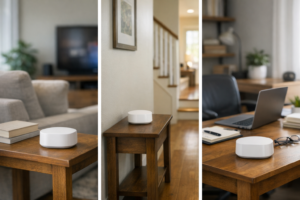
Mesh Wi‑Fi nodes placed throughout a home help provide reliable wireless coverage in every room.
Before You Start: What You’ll Need
Before you connect devices to eero Wi‑Fi, make sure you have your network name and password ready.
No matter what device you’re connecting, have these ready:
- Your Wi‑Fi network name (SSID)
- Your Wi‑Fi password
- The device powered on and within Wi‑Fi range
- A phone or tablet (helpful for apps and setup screens)
If Lakeshore Fiber installed your service, your eero network name and password were set up during install—or you may have changed them in the eero app.
Connecting Common Household Devices
How to Connect Phones and Tablets to eero Wi‑Fi (iPhone, Android, iPad)
- Open Settings
- Tap Wi‑Fi
- Select your eero network name
- Enter the Wi‑Fi password
✅ Once connected, the device should reconnect automatically whenever you’re home.
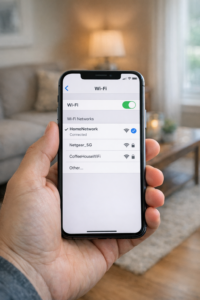
Connecting phones, tablets, and other devices to your home Wi‑Fi network using an eero system.
How to Connect Computers to eero Wi‑Fi
Windows & macOS:
- Click the Wi‑Fi icon in the taskbar or menu bar
- Choose your eero network
- Enter the password
💡 If speeds seem slow, make sure the computer is connected to the 5 GHz band (eero handles this automatically in most cases).
How to Connect Smart TVs and Streaming Devices to eero Wi‑Fi
This includes Roku, Fire TV, Apple TV, smart TVs, and gaming consoles.
- Open Network or Internet Settings
- Choose Wireless or Wi‑Fi
- Select your eero network
- Enter the password using the on-screen keyboard
📺 Tip: For 4K streaming or gaming, placing an eero node near the TV can improve performance.
If you need help setting up your smart TV check out our other blog 10 Simple Fixes for a Smooth Streaming Experience
How to Connect Smart Home Devices to eero Wi‑Fi (Cameras, Doorbells, Thermostats)
Most smart devices connect through a mobile app:
- Download the device’s app (Ring, Nest, Wyze, etc.)
- Follow the setup steps
- When prompted, select your eero Wi‑Fi network
- Enter the Wi‑Fi password
⚠️ Important:
Many smart devices only work on 2.4 GHz Wi‑Fi. eero automatically manages this, but you may need to temporarily enable “legacy device” mode in the eero app during setup.
Many smart devices only work on 2.4 GHz Wi‑Fi. eero automatically manages this, but you may need to temporarily enable “legacy device” mode in the eero app during setup.
How to Connect Printers to eero Wi‑Fi
ireless printers can be tricky, especially older models.
Newer Wi‑Fi standards and security settings can cause connection issues, which is something we see often when helping customers with home networks.
- Use the printer’s screen or buttons to find Wi‑Fi Setup
- Select your eero network
- Enter the password
- Install or update the printer software on your computer
🖨️ If the printer won’t connect, restarting both the printer and the eero system often solves the issue.
Game Consoles (PlayStation, Xbox, Nintendo)
- Go to Network Settings
- Choose Set Up Internet Connection
- Select Wi‑Fi
- Pick your eero network
- Enter the password
🎮 For the best experience:
- Place an eero node nearby
- Use a wired Ethernet connection if possible
Common Problems When You Connect Devices to eero Wi‑Fi (and How to Fix Them)
Device won’t connect?
- Double-check the password
- Restart the device
- Restart the eero network through the app
Slow speeds or buffering?
- Move closer to an eero node
- Reduce interference from walls or appliances
- Make sure devices are updated
Older devices struggling?
- Some older devices don’t support newer Wi‑Fi standards
- A nearby eero node or wired connection can help
Why Fiber Internet Makes a Difference
A strong Wi‑Fi network works best when it’s backed by fast, reliable internet. Fiber internet provides:
- Consistent speeds (even with many devices connected)
- Lower latency for gaming and video calls
- Better performance for smart homes and streaming
That means your eero system can do what it’s designed to do—deliver smooth, reliable Wi‑Fi throughout your home.
Need Help? Lakeshore Fiber Is Local
Every home is different, especially in our area where layouts, building materials, and weather can all impact Wi‑Fi performance. If you’re having trouble connecting devices or getting coverage where you need it, Lakeshore Fiber is here to help—with local support from people who understand your home and your connection. Also check out the FCC’s guide to home Wi-Fi networks.