
How to Use YouTube TV: 10 Simple and Easy Tips for Beginners
June 26, 2026
How to Use YouTube TV: 10 Simple and Easy Tips for Beginners
If you’re wondering how to use YouTube TV, you’re not alone. Many Lakeshore Fiber customers across Alpena are switching from cable to streaming. At first, it can feel a little confusing.
The good news is simple: once you learn a few basics, YouTube TV becomes easy to use every day. This guide will walk you through it step by step.
What Is YouTube TV?
Before learning how to use YouTube TV, it’s helpful to understand what it is.
YouTube TV is a live TV streaming service that works through your internet instead of a cable box. That means fewer wires, fewer devices, and more flexibility.
With Lakeshore Fiber internet, you can watch on:
- Smart TVs
- Roku, Fire Stick, or Apple TV
- Phones or tablets
- Computers
Most people find it simpler once everything is set up.
Use Voice Search on YouTube TV (The Easiest Way)
One of the best ways to learn how to use YouTube TV is by using voice search.
Steps:
- Go to the Search icon
- Press and hold the microphone button
- Say what you want (example: “Wheel of Fortune”)
- Let go of the button
Results will show up right away.
👉 Lakeshore Tip: Voice search is much easier than typing, especially for beginners.
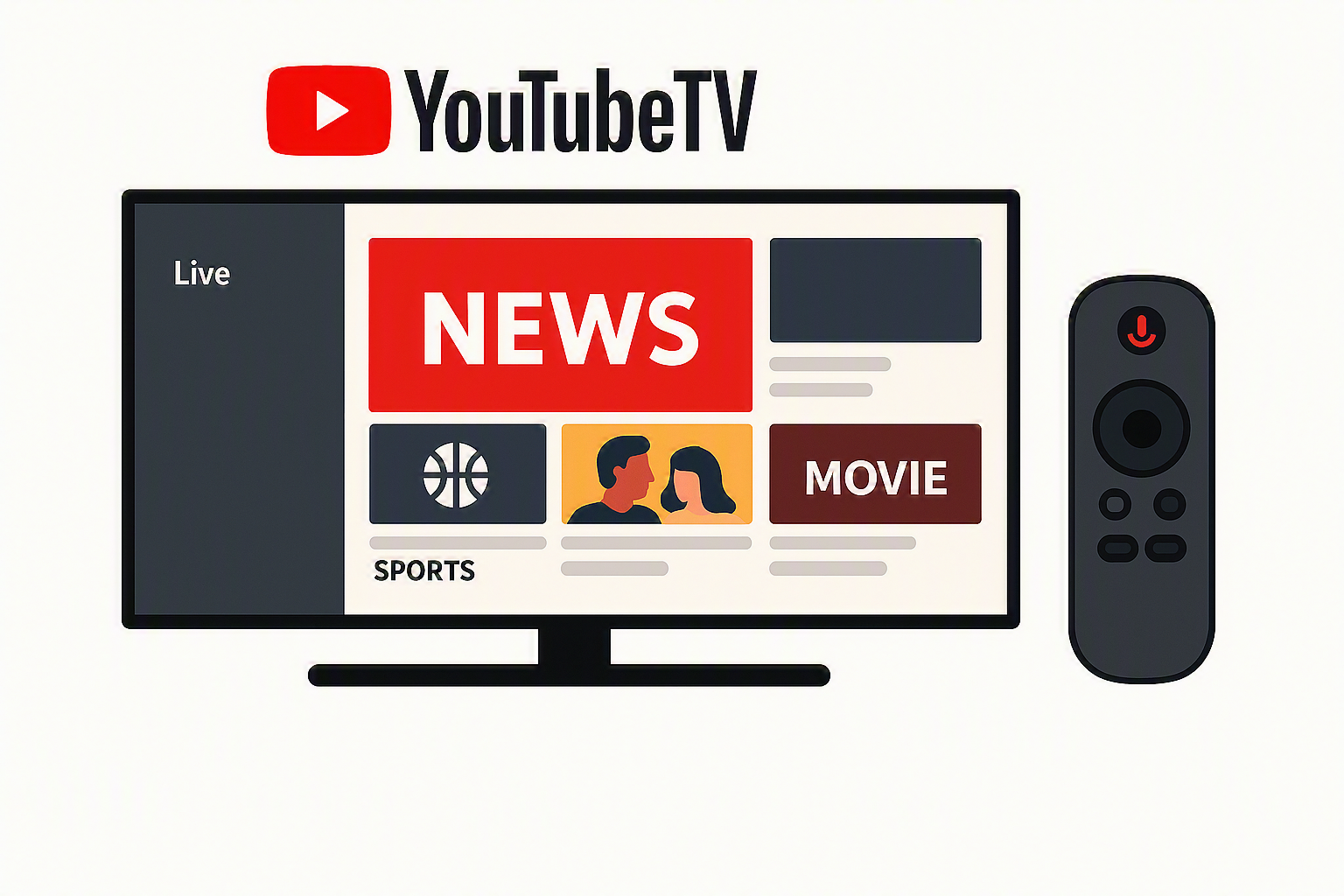
Example of how to use YouTube TV on a smart TV with a remote.
How to Use YouTube TV Multi-Screen
YouTube TV includes a multi-screen feature for sports.
To use it:
- Select a live game
- Choose “Watch in multiview”
- Pick how many screens you want
You can watch multiple games at once and switch the audio between them.
How to Organize Your YouTube TV Live Guide
The Live Guide shows your channels just like cable TV.
To adjust it:
- Go to the Live tab
- Scroll to the top
- Select Sort or Customize
How to Customize Your YouTube TV Channel List
A big part of learning how to use YouTube TV is setting up your channel list.
On your phone or computer:
- Open Settings
- Click Live Guide
- Drag channels to reorder
- Remove channels you don’t watch
👉 Tip: Put your favorite channels at the top so they’re easy to find.
How to Remove Shows You Don’t Want
YouTube TV suggests shows, but you can change that.
Steps:
- Highlight a show
- Click the three dots
- Select “Not interested”
Over time, YouTube TV will learn what you like.
How to Record Shows on YouTube TV
Recording is one of the easiest parts of learning how to use YouTube TV.
To record:
- Click “+ Add to Library”
That’s it. You don’t need to schedule anything.
Benefits:
- Unlimited storage
- Records every episode
- Saves for 9 months
For more details about YouTube TV features, you can visit the official YouTube TV website:
👉 https://tv.youtube.com/
👉 https://tv.youtube.com/
You can also explore Google’s official help guide here:
👉 https://support.google.com/youtubetv/
👉 https://support.google.com/youtubetv/
Your YouTube TV Library
Your Library is where all your recordings are saved.
It’s automatically organized into:
- Shows
- Movies
- Sports
Think of it as your personal TV hub.
Use Search Instead of Scrolling
Scrolling through channels can take time. Instead, use the search feature.
You can look for:
- Shows
- Channels
- Actors
- Sports teams
Or use voice search for faster results.
Helpful Settings for YouTube TV
Here are a few simple settings that improve your experience:
- Closed captions for easier listening
- Playback quality if your internet is slow
- Autoplay if you don’t want shows to continue automatically
With fiber internet, most people won’t need to change much.
Why Internet Speed Matters for YouTube TV
Streaming quality depends on your internet connection.
With faster fiber internet, you’ll get:
- Fewer interruptions
- Clearer picture quality
- Better performance on multiple TVs
This is especially important for live sports and busy households.
If you’re using streaming services often, it’s important to have a strong connection. Learn more about improving your home internet setup here:
👉 https://www.lakeshorefiber.com/internet
👉 https://www.lakeshorefiber.com/internet
Final Thoughts on How to Use YouTube TV
Learning how to use YouTube TV doesn’t take long.
Once you understand the basics, it becomes easier than traditional cable. You can record everything, customize your channels, and even use your voice to control what you watch.
With a reliable connection, streaming TV becomes simple, flexible, and enjoyable.